
Sources checked 21 November 2026.
Good garage invoicing software keeps the invoice connected to the work behind it. The customer’s original complaint, the proposed repair, the actual approval and the completed work should tell the same story. A polished PDF cannot compensate for an unclear record of what was agreed.
This guide follows an example UK garage job through that sequence. The HoodHero screenshots show each stage of the workflow; the worked figures below are a separate example. For software selection, see our UK comparison.
Start with the complaint and an inspection scope
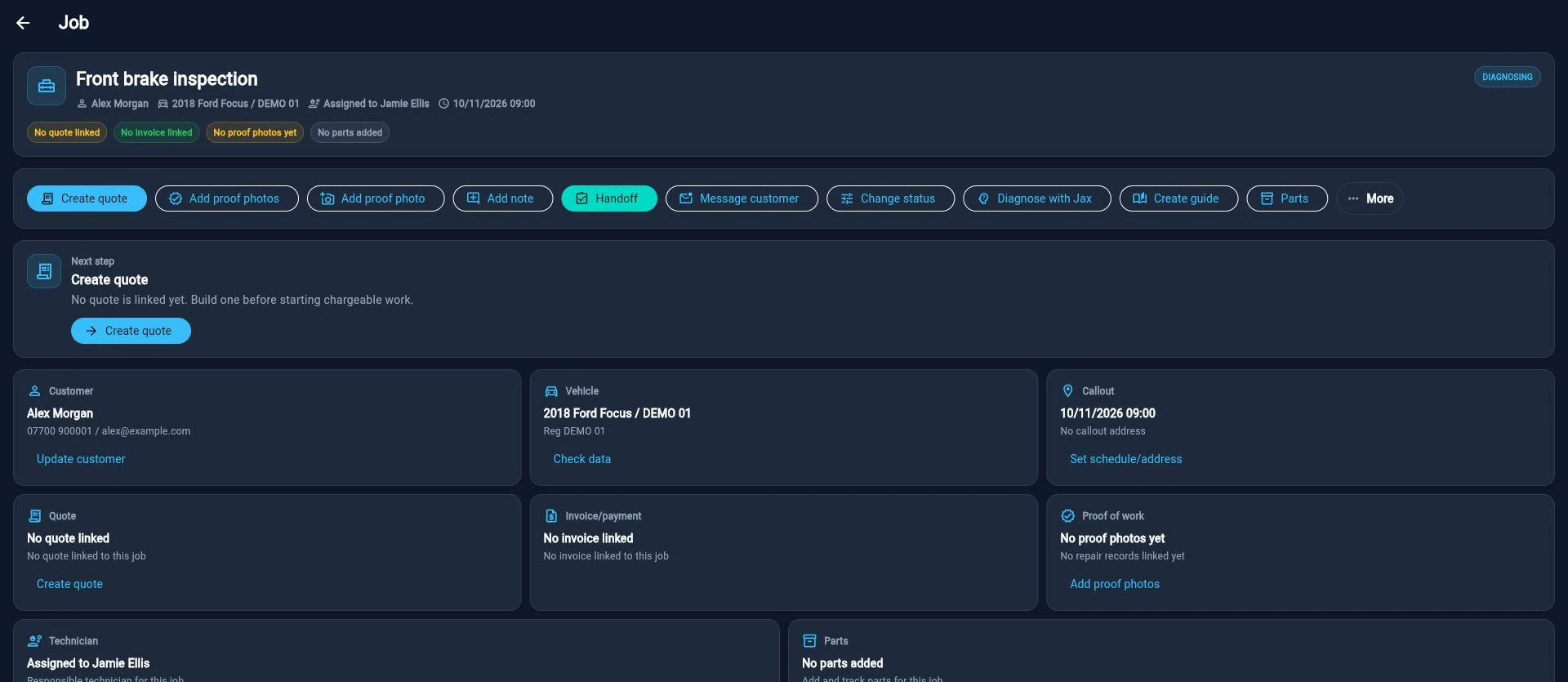
In this example, Taylor reports a scraping sound when braking. The workshop creates a customer and vehicle record, records the complaint in Taylor’s words and agrees an inspection scope. It does not immediately turn that symptom into a confirmed repair.
Record the booking date, contact details required for the job and the customer’s preferred update route. Add the inspection findings only after the work has happened. Relevant photographs or notes belong with the job so someone preparing the quote can understand the basis for the proposal.
In HoodHero, the job record and customer workflow keeps the information connected. Check the details before reusing them in a customer document. A registration lookup can assist data entry, but the garage still needs to verify the vehicle and the work being proposed.
Create an itemised proposal
Write a description the customer can understand. Separate labour, parts and other agreed charges, and identify what is included or excluded. If further investigation may change the scope, explain how the workshop will seek the next decision.
Be clear whether the document is a quote or an estimate. Business Companion’s motor-repair guidance, covering England, Scotland and Wales, explains the distinction and the need to agree unexpected extra work with the customer before carrying it out. Keep that decision with the job rather than silently changing the original amount.
Here is a worked calculation, before any applicable tax:
| Line | Quantity | Unit amount | Line amount |
|---|---|---|---|
| Agreed inspection | 1 | £40 | £40 |
| Approved repair labour | 1.5 hours | £60 | £90 |
| Example replacement parts | 1 set | £85 | £85 |
| Total before applicable tax | £215 |
These are invented teaching figures, not recommended labour rates or a quotation for a particular vehicle. The proposed repair and correct parts must follow the actual inspection. Only present tax you are entitled and required to charge; configure your business’s tax treatment correctly.
For a consumer-facing proposal, show the complete payable price, including any applicable tax and mandatory charges. For example, if every line above is subject to 20% VAT, £43 VAT makes the total £258. If the garage is not VAT registered, do not add that VAT. The pre-tax table explains the calculation; it is not a finished customer quote.
Make the customer decision explicit
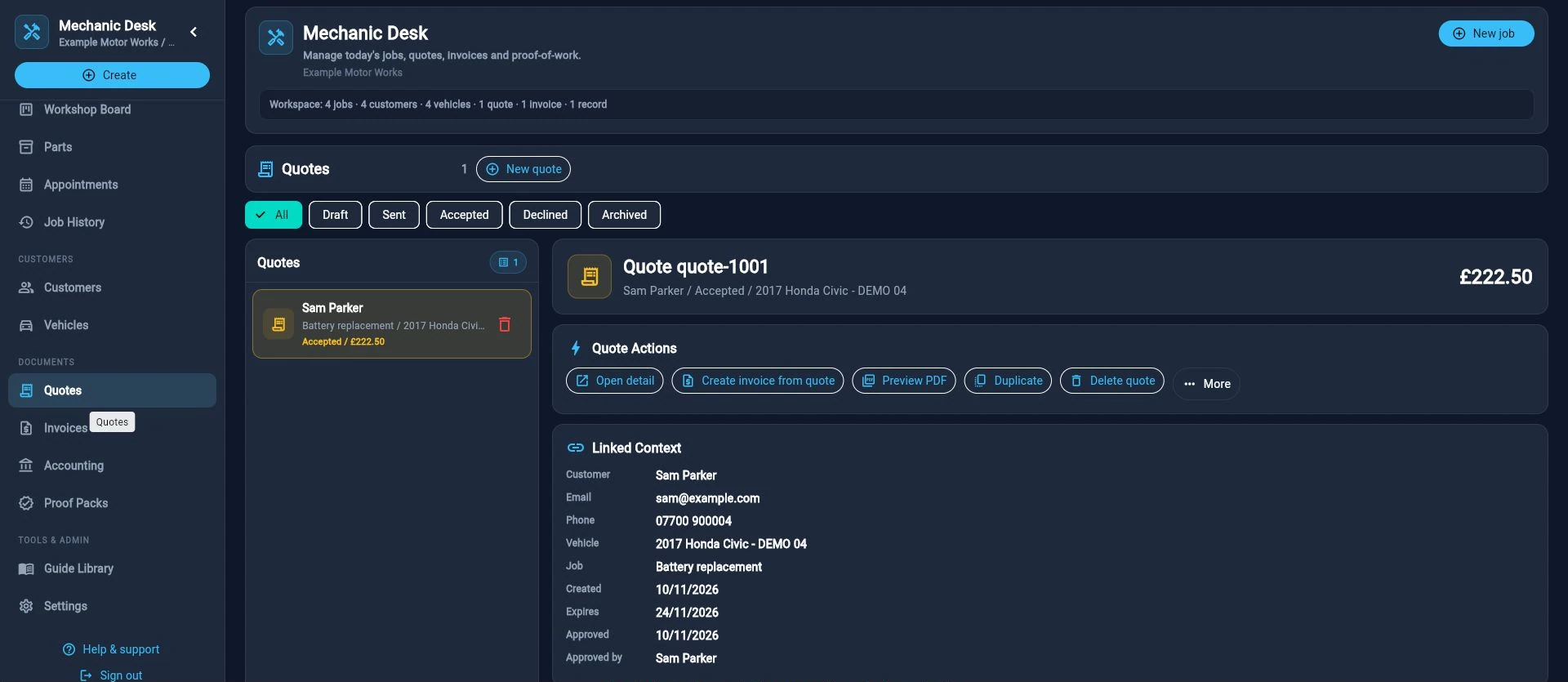
Send the intended version of the proposal and record the response. “Quote sent” and “quote approved” are different events. Record which work was accepted, any excluded items and any agreed limit. If the customer requests a change, preserve the sequence rather than making the original decision appear to cover a revised proposal.
In this example, Taylor approves the inspection and proposed repair but declines an unrelated optional item. The workshop records that distinction. A colleague should be able to see it without interpreting a private message chain.
Use our customer approval guide for a more detailed record-design example. Your garage remains responsible for its agreements and applicable consumer obligations; a software status is not a guarantee that the approval process is adequate.
Review changes before making an invoice
If the inspection uncovers additional work or the required part changes, pause and record the revised proposal and actual customer decision before treating it as approved work. Keep the customer informed about delays separately from any collection promise.
Before billing, compare the completed work with the agreed scope. Check quantities, labour entries and parts descriptions. Remove work that was proposed but not performed, and handle credits or revisions through the product’s intended process.
Do not use an AI draft as evidence that work happened. Generated wording can help explain a record, but someone at the garage must verify it against the job. That includes checking that a confident sentence has not turned a suspected fault into a confirmed finding.
Produce a clear invoice
Create the invoice from the completed, agreed work and review the result. Check business and customer names and addresses, a unique invoice number, both the supply and invoice dates, descriptions, charges, applicable VAT and the total due against current GOV.UK invoicing guidance. Include a useful vehicle or job reference and clear payment terms. Sole traders and limited companies have additional identity requirements; check the guidance for your business type rather than relying on a trading logo alone.
The exact requirements depend on the business and transaction. Do not assume that every garage should charge VAT or that every cross-border job has identical treatment. Use the relevant official guidance or your accountant for your circumstances.
In our worked example, the £215 pre-tax total must still match the underlying work. Do not substitute the sample arithmetic for the job’s real figures. Preview the document as the customer will receive it, including any notes that should remain internal.
Record payment accurately
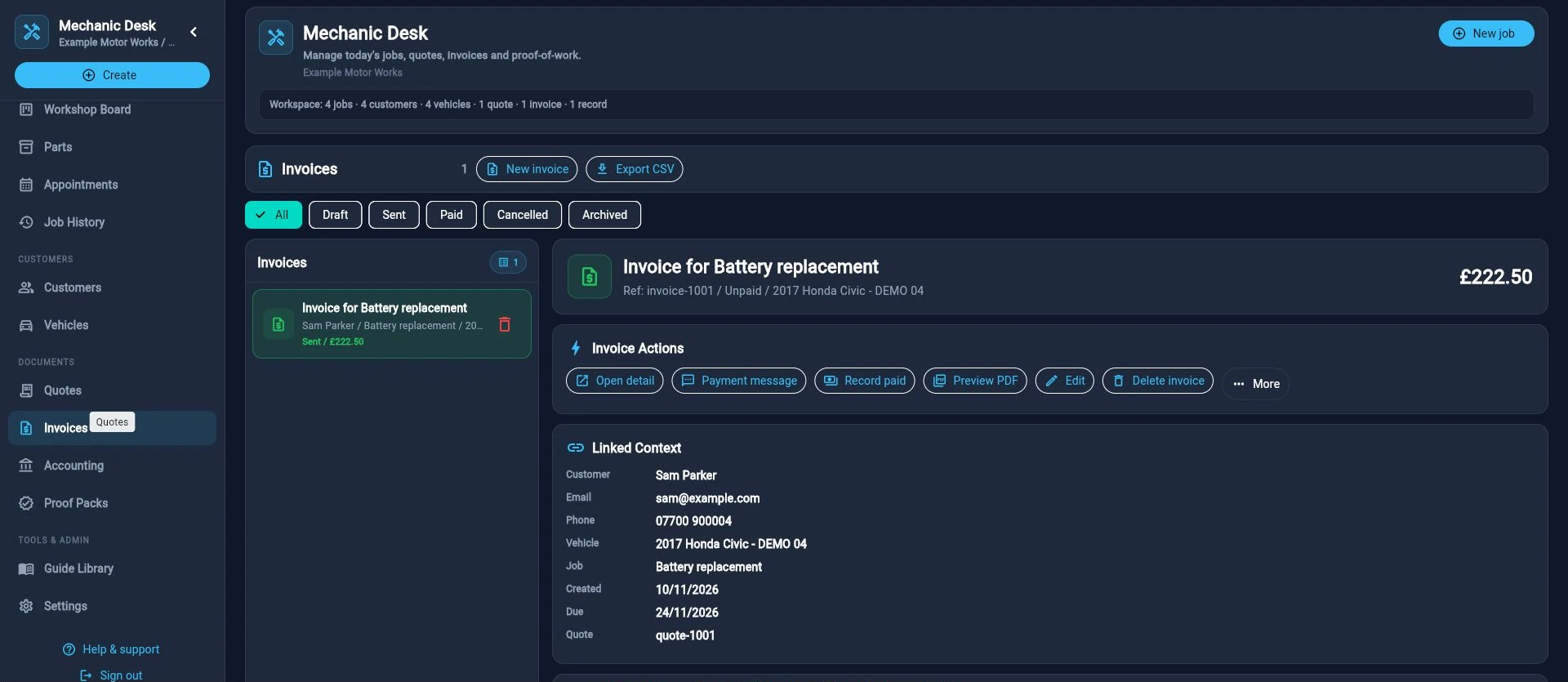
Sending an invoice does not make it paid. If the customer uses a payment link, follow the confirmed payment status. For other methods, record the amount and method through the appropriate workflow after the payment is actually confirmed.
Check for part payments, outstanding balances and accidental duplicate entries. Keep a processor reference where appropriate, but do not put private card details or credentials in job notes. Processing fees are separate from the garage software subscription and depend on the payment provider’s terms.
HoodHero supports invoice and payment-status workflows and secure Stripe payment links. It also offers supported accounting connections and CSV export. Those functions do not replace your accounting judgement or guarantee that an incorrectly configured mapping will produce the intended result.
Check the accounting handoff
If you use Xero or QuickBooks Online, test the connection with the right company, matching currency and reviewed tax mappings. Check how an invoice and its payment are represented before relying on the arrangement for routine work.
Where a CSV handoff is more suitable, agree the format and review process with the person handling the accounts. “Exported” should describe a completed action, not an assumption that the accountant has received and reconciled the data.
Keep the approved document and the underlying job record accessible. If a customer asks what a line means later, the workshop should be able to explain it from the record rather than reconstructing the conversation.
A repeatable invoice check
Before sending each document, ask: does this describe the right vehicle and customer, the work actually completed, the agreed charges, the correct tax treatment and clear payment information? Then confirm that the resulting payment status reflects what has happened.
Look through the HoodHero product walkthrough to see the connected screens, or start the seven-day no-card web trial with a practice job. A useful invoicing workflow is one you can follow from the first complaint to the final payment without losing the customer’s decision along the way.